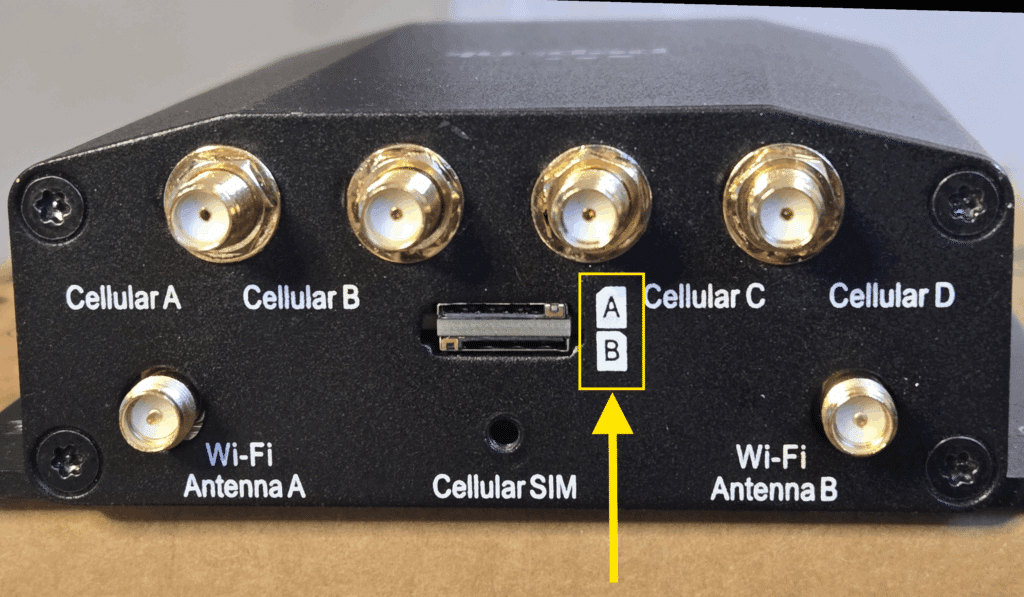
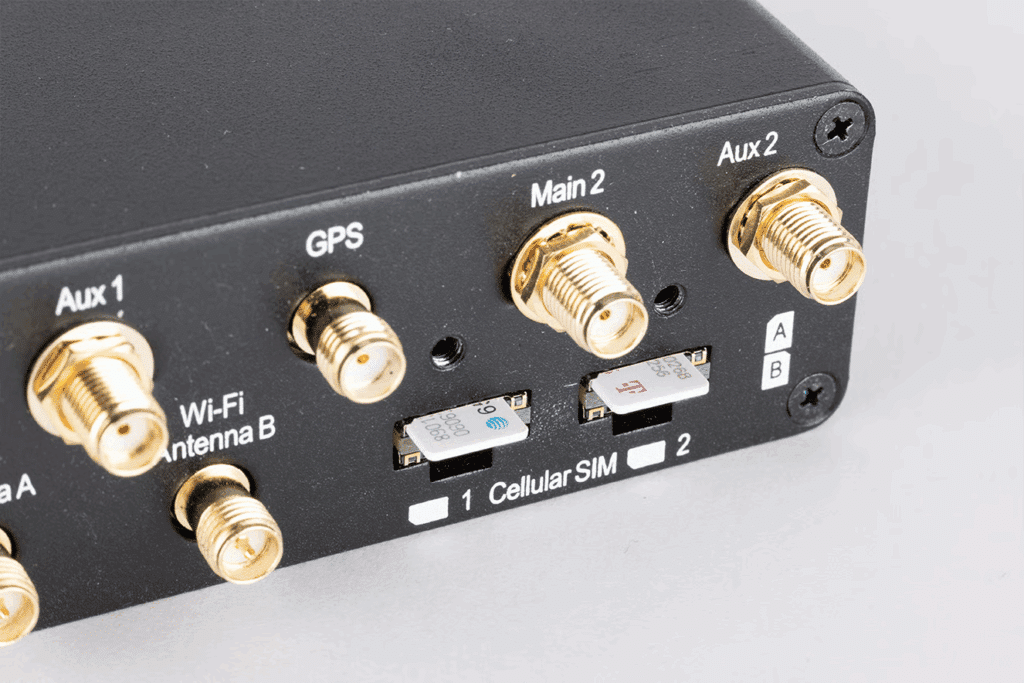
Peplink routers have icons near the SIM slots that indicate the correct SIM card orientation for each slot. The card should be oriented so that the clipped corner goes into the slot first and matches the position indicated by the corresponding icon.
MAX BR1 Mini 5G with Wi-Fi
In this example with a BR1 Mini Series router:
A SIM inserted into Slot A will have its metal contacts face-down.
A SIM inserted into Slot B will have its metal contacts face-up.
Slot choice
Lettered slots (A, B) refer to backup SIM slots. Only one of these can be active at once, and the router cannotHot Failover between them. When the SIM in Slot A loses signal, the router will witch to using the SIM in Slot B, but it may take up to 5 minutes to regain connectivity.
Numbered slots refer to slots for distinct cellular modems. The router canHot Failover between the SIMs in these slots.
MAX Transit Duo Pro
Cellular WAN configuration
Many SIM cards will work without additional setup, but some cards require configuration via Peplink’s Web Admin interface. The two settings that most often need configuring are Data Roaming and APN.
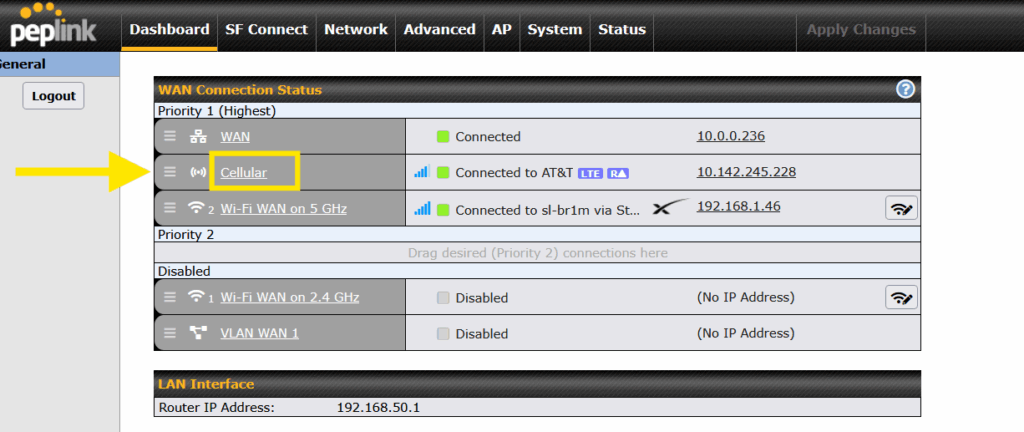
On the Dashboard tab, under WAN Connection Status, click on Cellular.
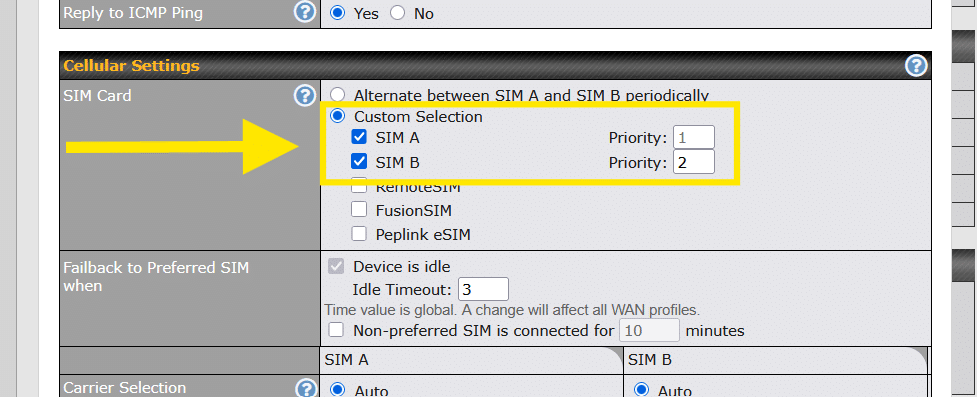
Cellular Settings
SIM Card: Default setting is usually acceptable, but if you wish to use SIM B purely as a backup to SIM A, choose Custom Selection, and change SIM B’s priority to 2.
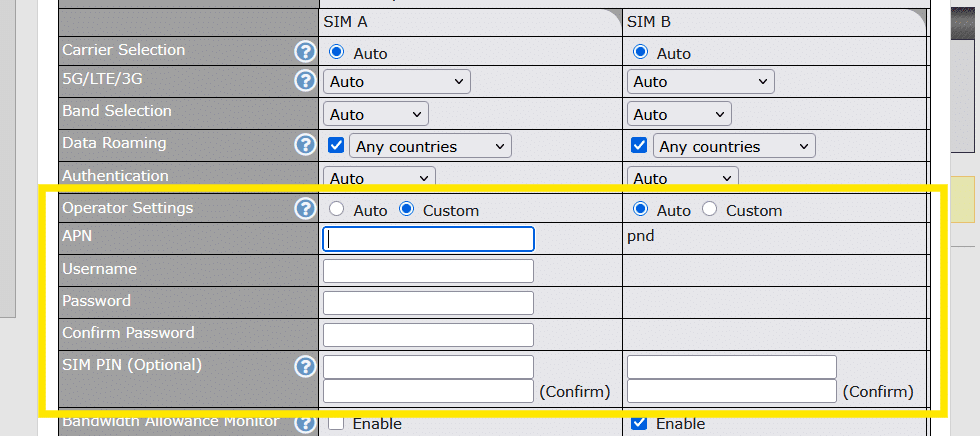
Operator Settings – APN: Many SIMs will work fine when left on Auto, but some SIMs require CustomAPN entry. In the latter case, contact the service provider for details.
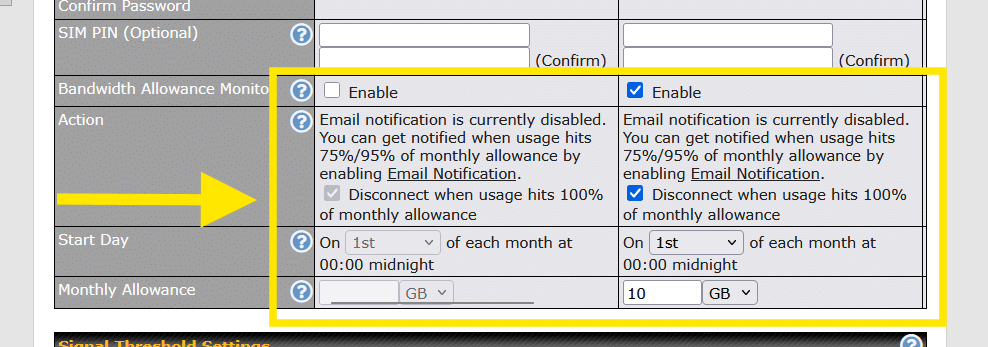
Bandwidth Allowance Monitor: This setting will track the data used by the SIM and send an email alert and/or automatically disconnect the SIM card when monthly cap is reached.
Indicate which day of the month your plan resets. trekData plans reset on the 1st of each month.
Choose your Monthly Allowance to match your data plan.
Still having trouble with your cellular connection or accessing the Peplink Web Admin? Get in touch and we’ll assist through the connection and configuration process.